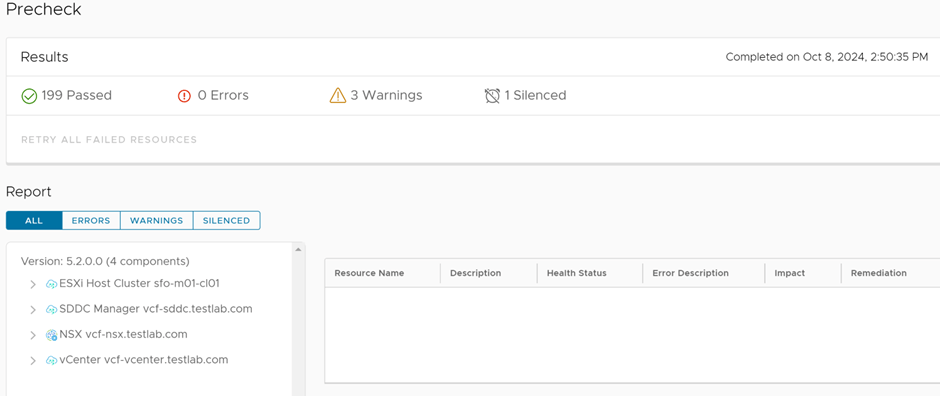
Following the previous blog where we uploaded all the bundles of to upgrade the VCF Management Workload Domain offline, I started running the prechecks for the upgrade and the below was the result:
Since this is a test and nested environment, I silenced the precheck alarm
In this blog we’ll discuss how to use the offline bundle transfer utility of VCF to upload install bundles to SDDC Manager in order to prepare for a VCF upgrade from VCF 5.0 to VCF 5.2, the offline bundle transfer utility is useful in case the SDDC manager doesn’t have internet access which is the case in air gapped environment.
The pre-requisites below are required for running the utility:
A Windows or Linux computer with internet connectivity (either directly or through a proxy) for downloading the bundles
The computer must have Java 8 or later
A Windows or Linux computer with access to the SDDC Manager appliance for uploading the bundles
To upload the manifest file from a Windows computer, you must have OpenSSL installed and configured ( what I did is I copied the files required to the SDDC Manager appliance using WinSCP after downloading them using the utility, this will be later explained)
First step I downloaded the bundle transfer utility from Broadcom Customer Support Portal
There Utility tool will be used in 2 locations, the PC where the manifest and compatibility files are downloaded as well as in the SDDC Manager,
So first is to extract the OBTU in my PC, which looks like the below:
Second to upload it to the SDDC Manager appliance via WinSCP
I copied it in the same location as suggested in the official documentation where I followed the below steps:
mkdir /opt/vmware/vcf/lcm/lcm-tools
tar -xvf lcm-tools-prod.tar.gz
cd /opt/vmware/vcf/lcm/
chown vcf_lcm:vcf -R lcm-tools
chmod 750 -R lcm-tools
One issue I was failing on using the utility from my PC was this :
Which I fixed by modifying by changing the default Java 8 installation location to a different folder than the default and modifying the JAVA_HOME environmental variable in my Windows PC
We need to download 3 files from the depot which are
Manifest file
Compatibility data
vSAN HCL file
To download the manifest file:
To download the compatibility data file:
To download the vSAN HCL file:
Finally download the install bundles, I’m upgrading my lab from VCF 5.0 to VCF 5.2 so below are the steps I followed to download the install bundles
Using this command “lcm-bundle-transfer-util –download –outputDirectory C:\Hisham\VMware\VCF\5.2 –depotUser xyz@gmail.com –sv 5.0.0.0 –p 5.2.0.0”
And I selected All, notice here that Avi Controller is now available as part of the VCF 5.2 BOM is this is a new feature to lifecycle Avi Controllers from SDDC Manager ( this is available in VCF 5.2) previously it was a manual installation.
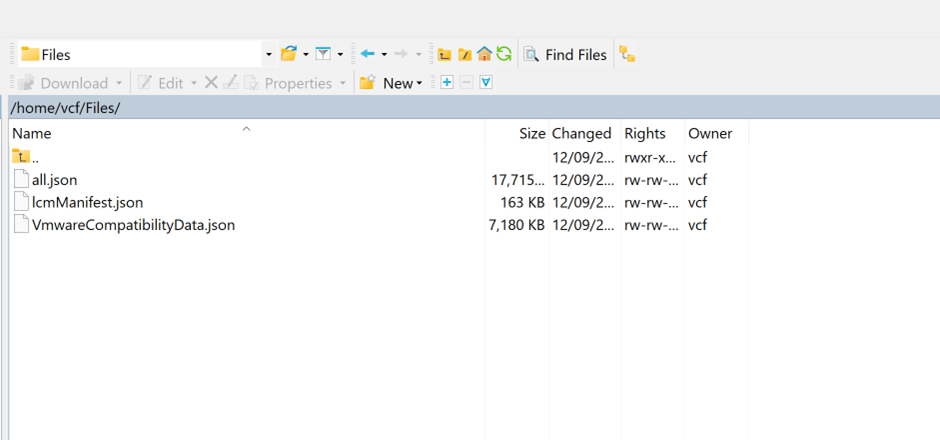
Next is to update the manifest file and Compatibility Matrix file in the SDDC Manager appliance. I uploaded the 3 files downloaded in the previous steps to the SDDC Manager appliance
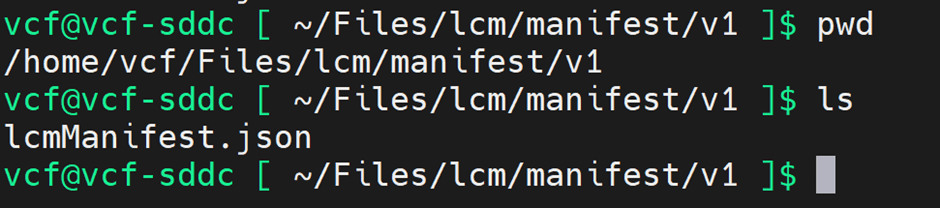
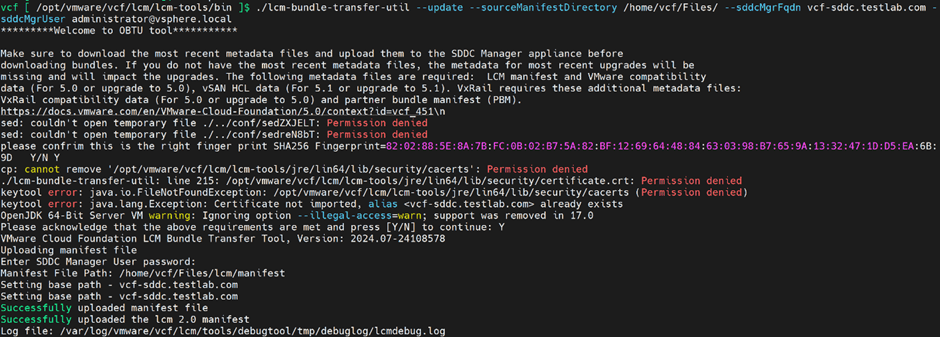
To update the sourceManifest file , I ran the below command in the SDDC Manager appliance, however I used to get couple of unexplained failures prior to that and the reason is the path of the file need to look something like the below
Not sure the reason behind it, but it had the same path when I downloaded it on my PC so I followed the same path.
Next, I did the same for the compatibility matrix file:
And when I tried to update the vSAN HCL file I got the below error:
ERROR: Cannot upload vSAN HCL to SDDC Manager versions below 5.1.0.0 so probably the one downloaded was not up to date,
Last but not least is to upload the offline bundles downloaded earlier to SDDC Manager
However I noticed when trying to update all bundles on SDDC Manager that only NSX gets uploaded, so instead I uploaded each bundle at time, not sure the reason behind this.
As per the below, the offline bundles are uploaded successfully to the SDDC Manager:
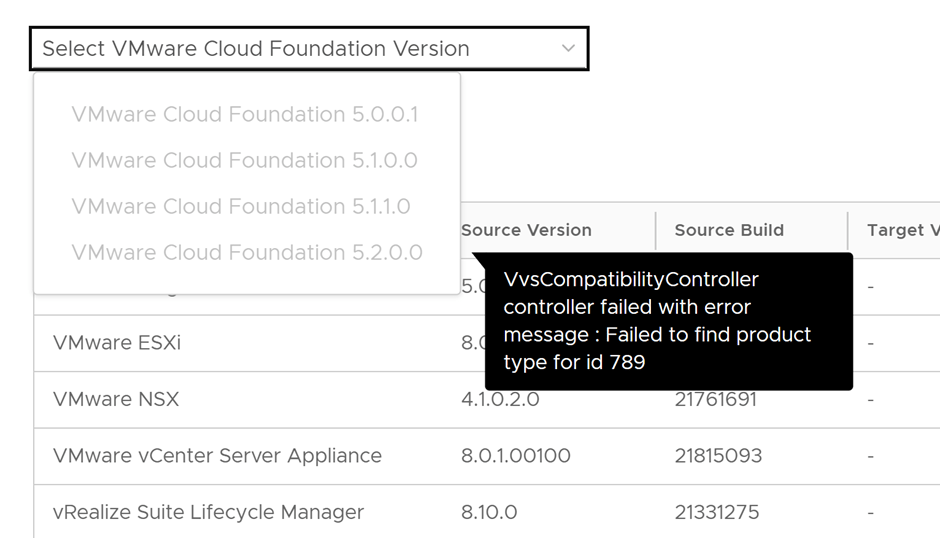
On clicking Plan for Upgrade the below message was showing:




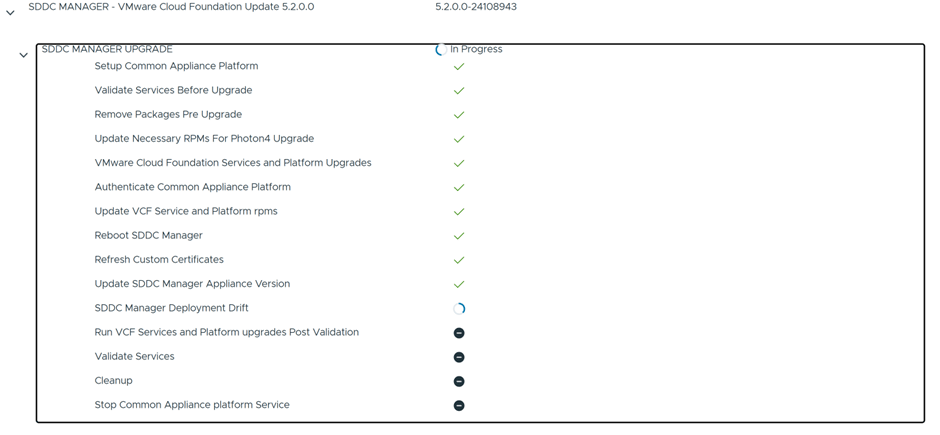

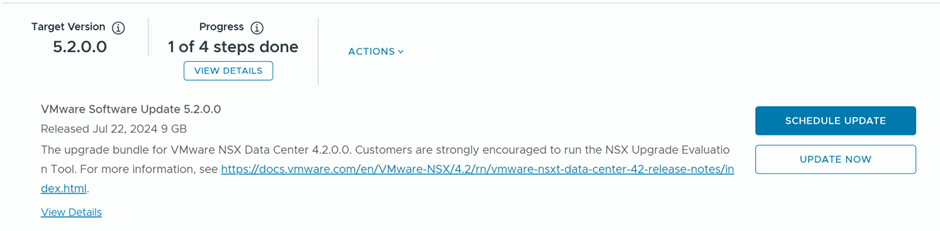




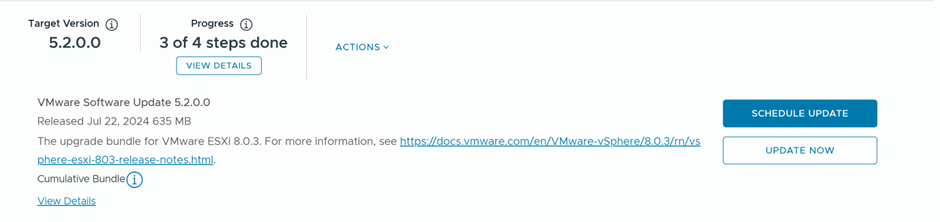









 The SDN Blog